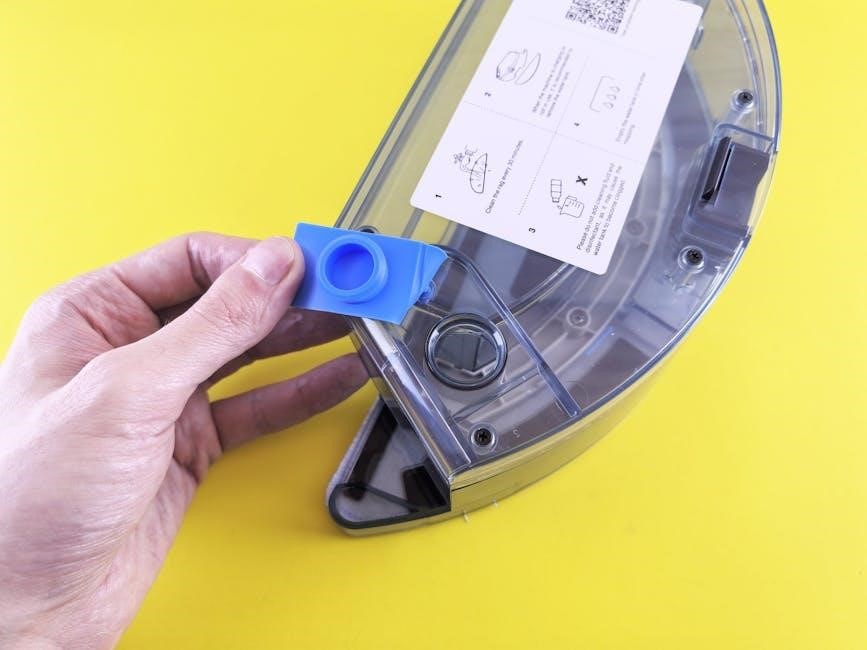
The Brother HL-2270DW is a monochrome laser printer designed for small to medium-sized businesses, offering reliable performance and versatile connectivity options for efficient document management․
Overview of the Printer
The Brother HL-2270DW is a compact, high-speed monochrome laser printer engineered for both home office and business use․ It boasts automatic duplex printing, significantly reducing paper consumption and costs․ This printer delivers crisp, professional-quality documents at a print speed of up to 27 pages per minute․
Connectivity is a key strength, offering built-in wireless (infrastructure and ad-hoc), Ethernet, and USB interfaces․ The printer supports mobile printing solutions, enhancing user convenience․ It’s designed to work optimally with genuine Brother supplies, ensuring consistent performance and reliability․ The HL-2270DW is a robust and efficient printing solution․
Key Features and Benefits
The Brother HL-2270DW excels with its high-speed printing (up to 27ppm) and automatic duplex printing, saving paper and money․ Wireless connectivity (infrastructure & ad-hoc) and Ethernet provide flexible network options․ Mobile printing via iPrint&Scan enhances convenience․
Benefits include reduced operational costs through efficient toner usage and duplex printing․ Genuine Brother supplies ensure optimal print quality and printer longevity․ The printer’s compact design fits easily into any workspace․ ControlCenter software (compatibility notes apply) streamlines document management, offering a user-friendly experience․

Setting Up Your Brother HL-2270DW
Initial setup involves carefully unboxing the printer, inspecting for damage, and preparing for toner/drum installation, ensuring a smooth start to operation․
Unboxing and Initial Inspection
Carefully unpack your Brother HL-2270DW from the box, retaining the packaging for potential future transport or warranty claims․ Inspect the printer thoroughly for any visible signs of damage incurred during shipping, such as dents, scratches, or broken parts․ Verify that all included accessories are present, including the toner cartridge, drum unit, power cord, and documentation․ Remove all protective tape and packing materials from both the exterior and interior of the printer․ Ensure the drum unit and toner cartridge are properly secured within the machine before proceeding․ Report any damage or missing components immediately to your retailer or Brother Customer Support․
Installing the Toner and Drum Unit
Open the top cover of the Brother HL-2270DW․ Remove the protective cover from the drum unit and insert it into the printer, ensuring it clicks securely into place․ Unpack the toner cartridge, gently rock it from side to side to distribute the toner, and insert it firmly into the drum unit․ Close the top cover until it clicks shut․ Avoid touching the drum surface, as this can affect print quality․ Proper installation is crucial for optimal performance and to prevent potential damage to the printer․ Refer to the diagrams in the user manual for visual guidance․
Connecting to Power and Turning On
Connect the provided power cord to the back of the Brother HL-2270DW and plug it into a grounded electrical outlet․ Ensure the outlet voltage matches the printer’s requirements․ Do not use an extension cord or power strip if possible․ Press the power button located on the front panel to turn on the printer․ The printer will initiate a warm-up sequence, and the status indicator will illuminate․ Allow the printer to complete its initialization process before attempting to print․ Verify all connections are secure before proceeding․
Connecting to a Network
The HL-2270DW supports wireless (Infrastructure & Adhoc) and wired (Ethernet) network connections, enabling seamless printing from multiple devices within your environment․
Wireless Network Setup ─ Infrastructure
To connect via Infrastructure mode, access the printer’s menu using the control panel․ Navigate to Network, then WLAN, and select Setup․ Choose SSID to locate and select your wireless network name from the available list․
Enter your network security key (password) accurately․ Confirm the settings and the printer will attempt to connect․ A successful connection is indicated by a stable WLAN indicator on the control panel․ Ensure your router is broadcasting its SSID and supports the printer’s wireless standards for optimal performance․
Wireless Network Setup ⏤ Adhoc
For Adhoc connections, the printer creates its own wireless network․ From the printer’s control panel, navigate to Network, then WLAN, and select Setup․ Choose Adhoc mode․ You’ll need to define a network name (SSID) and a security key (password) for this temporary network․
On your computer or mobile device, search for the newly created network (the SSID you defined) and connect using the password․ This method is suitable for direct connections without a router, but offers limited range and security compared to Infrastructure mode․
Wired Network (Ethernet) Connection
To connect via Ethernet, use a straight-through Ethernet cable and connect one end to the printer’s Ethernet port and the other to an available port on your router or network switch․ Ensure your router is powered on and functioning correctly․
The printer will typically obtain an IP address automatically via DHCP․ Verify the connection by checking the printer’s network configuration through its control panel․ A successful connection allows for seamless printing and scanning across your network․
Installing Drivers and Software
Proper driver installation ensures full functionality of your Brother HL-2270DW․ Download the latest versions from the Brother Solutions Center website for optimal performance․
Downloading Drivers from Brother Solutions Center
Accessing the Brother Solutions Center is the primary method for obtaining the necessary drivers and software for your HL-2270DW printer․ Navigate to the official Brother website and locate the “Support” or “Downloads” section․
Enter your printer model number (HL-2270DW) into the search bar to filter the results․ Ensure you select the correct operating system (Windows, macOS) from the available options․
The website will present a list of downloadable files, including full driver packages, printer drivers, and utility software like ControlCenter․ Carefully review the descriptions to choose the appropriate package for your needs․ Download the selected file to a convenient location on your computer․
Full Driver and Software Package Installation
After downloading the full driver and software package from the Brother Solutions Center, locate the downloaded file (typically an ․exe file for Windows)․ Double-click the file to initiate the installation wizard․
Follow the on-screen prompts, carefully reading each step․ The installer will guide you through accepting the license agreement, selecting the installation type (typically “Easy Install” is recommended), and choosing the connection method (USB or Network)․
The installation process may take several minutes․ Once completed, restart your computer if prompted to finalize the installation․
ControlCenter Software (Compatibility Notes)
Brother’s ControlCenter software provides enhanced printer management features․ However, compatibility is limited with newer operating systems․ Specifically, ControlCenter is not supported on MacOS 10․15 or later versions․
Users with these macOS versions should utilize Apple Image Capture for scanning functionality․ Alternatively, the Brother iPrint&Scan application, if compatible with your system, offers scanning and workflow capabilities․
For users requiring advanced features previously available in ControlCenter, exploring alternative software solutions may be necessary․
Using the Brother iPrint&Scan Application
Brother iPrint&Scan for PC/Mac unlocks scanning and workflow features, providing convenient access to your printer’s capabilities from your computer․
Downloading and Installing iPrint&Scan (PC/Mac)
To utilize the Brother iPrint&Scan application on your PC or Mac, begin by visiting the official Brother Solutions Center website․ Locate the support section for the HL-2270DW model․ Within the downloads area, search for “iPrint&Scan” and select the version compatible with your operating system – either Windows or macOS․
Download the installer file and, once complete, double-click it to initiate the installation process․ Follow the on-screen prompts, accepting the license agreement and choosing your preferred installation settings․ The application will install necessary components, and upon completion, you’ll be ready to scan and manage workflows directly from your computer․
Scanning with iPrint&Scan
Initiating a scan with Brother iPrint&Scan is straightforward․ First, ensure your HL-2270DW is connected to your computer and powered on․ Launch the iPrint&Scan application․ The software will automatically detect your printer․ Select the “Scan” function from the main interface․
Configure your scan settings, including resolution, file format (like PDF or JPEG), and color mode․ Place your document on the printer’s glass surface and click the “Start Scan” button․ The scanned image will be displayed and saved to your designated folder, ready for use․
Workflow Functionality in iPrint&Scan
Brother iPrint&Scan streamlines document workflows beyond basic scanning․ Users can create customized profiles for frequent scan jobs, pre-defining settings like resolution and file type․ This feature accelerates repetitive tasks, boosting productivity․ The application supports direct saving to various cloud services, including popular options like Dropbox and Google Drive, facilitating easy document sharing and backup․
Furthermore, iPrint&Scan enables multi-page document scanning into a single PDF file, simplifying organization and archiving․ These workflow tools enhance efficiency for both home and office users․

Understanding the Control Panel
The HL-2270DW’s control panel features intuitive button functions and a display providing status updates, error messages, and menu navigation for easy printer operation․
Button Functions and Indicators
The Brother HL-2270DW’s control panel utilizes several buttons for various functions․ The Go button serves as both an OK and a Start button, confirming selections and initiating print jobs․ The Stop/Exit button cancels current operations and returns to the previous menu․ Up and Down arrow buttons facilitate menu navigation, allowing users to scroll through options․
LED indicators provide crucial status information․ The Toner LED illuminates when toner is low, while the Drum LED indicates a need for drum unit replacement․ A Paper Jam LED alerts users to paper-related issues․ The Ready LED signifies the printer is operational, and the Error LED signals a problem requiring attention․ Understanding these indicators is key to efficient printer management․
Display Messages and Error Codes
The Brother HL-2270DW’s display presents various messages to guide users․ “Ready” indicates normal operation, while “Busy” signifies the printer is processing a job․ Error messages, displayed as codes (e․g․, “40”), pinpoint specific issues like paper jams or toner shortages․ Refer to the printer’s documentation for a comprehensive list of error codes and their corresponding solutions․
Common messages include “No Paper,” “Toner Low,” and “Drum End․” These prompts require immediate action, such as refilling paper or replacing consumables․ The display also shows menu options and settings during navigation․ Deciphering these messages ensures prompt troubleshooting and optimal printer performance․
Navigating the Menu
The Brother HL-2270DW’s control panel allows access to various settings via its menu․ Use the Up/Down arrow buttons to scroll through options like “Print Quality,” “Network,” and “Maintenance․” Press “OK” to select a highlighted item․ The “Back” button returns to the previous menu․
Menu options enable customization of print settings, network configurations, and printer maintenance routines․ Explore options to adjust print density, duplex printing, and secure print features․ The menu structure is intuitive, allowing users to easily modify settings to suit their specific needs and optimize printer functionality․
Printing Documents
The HL-2270DW supports basic printing from various applications, offering adjustable print quality settings to balance speed and resolution for optimal results․
Basic Printing Operations
To initiate printing, ensure the printer is powered on and connected to your computer․ Open the document you wish to print from your chosen application – such as Microsoft Word or Adobe Acrobat․ Navigate to the “File” menu and select “Print․”
In the print dialog box, select the Brother HL-2270DW as your printer․ Adjust basic settings like the number of copies, page range, and paper size as needed․ Click the “Print” button to begin the printing process․ The printer will automatically pull paper and begin producing your document․ Monitor the printer’s status through the control panel for any alerts․
Printing from Different Applications
The Brother HL-2270DW seamlessly integrates with a wide range of applications․ When printing from programs like Microsoft Word, Excel, or PowerPoint, utilize the “File” then “Print” command, selecting the printer from the available options․
For Adobe Acrobat, the process is similar; choose “File” and then “Print,” ensuring the correct printer is selected․ Web browsers also allow direct printing via their print functions․ Regardless of the application, always verify print settings before initiating the print job for optimal results․
Print Quality Settings
The Brother HL-2270DW offers adjustable print quality settings to suit various document needs․ Access these settings through the printer driver on your computer․ Options typically include “Draft,” “Normal,” and “High” quality․ “Draft” is ideal for internal documents, conserving toner․
“Normal” provides a balance between speed and quality, suitable for everyday printing․ “High” quality delivers the sharpest text and graphics, best for presentations or important reports․ Experiment with these settings to achieve your desired output․

Maintenance and Troubleshooting
Regular cleaning and prompt attention to paper jams are crucial for optimal performance․ Consult the user manual for detailed instructions and common issue resolutions․
Cleaning the Printer
To maintain optimal print quality, regular cleaning of the Brother HL-2270DW is essential․ Begin by turning off and unplugging the printer․ Gently open the front cover and carefully remove the toner and drum unit․ Use a soft, lint-free cloth to wipe away any toner residue from inside the printer and on the drum unit itself – avoid direct contact with the drum surface․
Inspect the paper path for any debris or obstructions, and carefully remove them․ Clean the corona wire with a dry, lint-free cloth․ Reinstall the drum and toner unit, ensuring they are securely in place․ Finally, close the front cover and plug the printer back in․
Resolving Paper Jams
Paper jams can occur in several areas of the Brother HL-2270DW․ First, turn off and unplug the printer․ Open the rear cover and carefully remove any jammed paper, pulling it gently in the direction of the paper path – avoid tearing․ Next, open the front cover and inspect for jams near the toner and drum unit, removing any obstructions carefully․
Check the paper tray and ensure the paper is loaded correctly and not overfilled․ Once all jammed paper is removed, close all covers securely and plug the printer back in․
Troubleshooting Common Issues
If print quality is poor, check toner levels and print a cleaning page from the printer’s menu․ For network connectivity problems, verify the wireless signal strength and ensure the correct network settings are configured․ If the printer is offline, restart both the printer and your computer․
Error codes displayed on the control panel indicate specific issues; consult the printer’s manual for detailed explanations and solutions․ Regularly updating drivers from the Brother Solutions Center can also resolve many common problems․
Genuine Brother Supplies
Brother recommends using only genuine Brother toner cartridges and drum units to ensure optimal print quality and protect your printer’s longevity and performance․
Importance of Using Genuine Toner and Drum Units
Brother strongly recommends utilizing only genuine Brother drum units and toner cartridges with your HL-2270DW printer; These components are meticulously engineered and tested to work seamlessly with your machine, guaranteeing consistently high-quality prints and reliable performance․ Non-genuine supplies may lead to diminished print quality, potential printer damage, and could even void your warranty․
Genuine Brother supplies are designed to operate at pre-set temperatures, perfectly matched to your printer’s specifications․ This ensures optimal functionality and prevents issues arising from incompatibility․ Investing in genuine supplies safeguards your investment and delivers a superior printing experience, maximizing the lifespan and efficiency of your Brother HL-2270DW․
Toner Cartridge Replacement
When the toner cartridge is nearing empty, the printer will display a message indicating it’s time for a replacement․ To replace, open the front cover of the HL-2270DW․ Carefully remove the toner cartridge and drum unit assembly․ Press the green lock lever down, then detach the toner cartridge from the drum unit․
Unpack the new toner cartridge, remove the protective cover, and gently insert it into the drum unit until it clicks into place․ Reinstall the combined drum unit and toner cartridge back into the printer, close the front cover, and the printer will automatically reset․
Drum Unit Replacement
Brother recommends using genuine Brother drum units for optimal print quality and printer longevity․ The drum unit has a higher page yield than the toner cartridge, meaning it needs replacing less frequently․ When the printer indicates the drum unit needs replacement, open the front cover and remove the toner/drum assembly․
Press the green lock lever and separate the drum unit from the toner cartridge․ Unpack the new drum unit, remove the protective cover, and install it․ Reassemble with a new toner cartridge, reinstall into the printer, and close the cover․

Advanced Features
The HL-2270DW offers duplex printing, secure print functionality, and mobile printing solutions, enhancing productivity and convenience for various printing needs within your workspace․
Duplex Printing (Two-Sided Printing)
The Brother HL-2270DW supports automatic duplex printing, a valuable feature for reducing paper consumption and promoting environmentally friendly practices․ This allows you to print on both sides of a sheet of paper automatically, halving your paper usage․ To enable duplex printing, access the printer menu via the control panel and navigate to the print settings․
Select the “2-sided printing” option and choose your preferred binding edge – long or short․ Ensure your paper type is compatible with duplex printing for optimal results․ This feature is easily accessible and contributes to cost savings and a smaller environmental footprint, making it ideal for high-volume printing tasks․
Secure Print Functionality
The Brother HL-2270DW offers secure print functionality, enhancing document confidentiality within your office environment․ This feature requires a PIN to be entered on the printer’s control panel before a print job is released, preventing unauthorized access to sensitive information․ To utilize secure print, select the option during the print settings on your computer․
The printer will then assign a unique PIN to the job․ Access the printer, enter the PIN, and your document will print․ This is particularly useful in shared office spaces, ensuring only the intended recipient can retrieve their printed materials, bolstering data security and privacy․
Mobile Printing Solutions
The Brother HL-2270DW supports convenient mobile printing, allowing you to print directly from your smartphone or tablet devices․ Utilizing the Brother iPrint&Scan application (available for iOS and Android), users can effortlessly print documents, images, and PDFs without needing a computer connection․
Furthermore, compatibility with mobile printing technologies like AirPrint enables direct printing from Apple devices․ This flexibility empowers users to work on-the-go, increasing productivity and streamlining workflows․ Simply connect your mobile device to the same network as the printer and begin printing․
Accessibility Features
For users with visual impairments, the HL-2270DW’s user manual is available online, offering accessible formats to enhance usability and understanding․
For Users with Visual Impairments
Brother recognizes the importance of accessibility for all users․ The HL-2270DW user manual is designed with consideration for individuals with visual impairments, offering several resources to ensure a positive experience․ The digital manual, available on the Brother Solutions Center website, supports screen readers and text magnification tools․
This allows users to adjust the text size and utilize assistive technologies for easier navigation and comprehension․ Furthermore, Brother Canada Support is dedicated to providing assistance and alternative formats upon request, ensuring everyone can access vital product information․ The goal is inclusive usability․

Resources and Support
Brother provides extensive support through the Brother Solutions Center website, Brother Canada Support, and a network of authorized resellers for assistance․
Brother Solutions Center Website
The Brother Solutions Center is a comprehensive online resource for your HL-2270DW printer․ Here, you can download the latest drivers and software packages, including the Full Driver and Software Package, essential for optimal performance․ Access detailed user manuals, troubleshooting guides, and frequently asked questions to resolve common issues independently․
Furthermore, the website offers access to schematic diagrams and service manuals for advanced users․ You’ll find PDF instructions, often in multiple languages, covering various aspects of printer operation and maintenance․ It’s the primary hub for all HL-2270DW related documentation and support materials․
Brother Canada Support
Brother Canada provides dedicated support for your HL-2270DW printer, ensuring a seamless user experience․ Their support network assists with troubleshooting, driver updates, and resolving any operational challenges you may encounter․ They offer assistance both at the office and at home, catering to diverse user needs․
Explore their website for a wide range of Brother products, including printers, scanners, and consumables․ Brother Canada is committed to customer satisfaction, offering resources and expert guidance to maximize your printer’s functionality and longevity, referencing the user manual when needed․
Authorized Reseller Program
Become a Brother Authorized Reseller and expand your business offerings with the HL-2270DW and other innovative Brother solutions․ This program provides access to exclusive benefits, marketing resources, and dedicated support to drive sales and customer satisfaction․ Partnering with Brother unlocks opportunities to serve a broader customer base seeking reliable printing solutions․
Additionally, explore becoming a Sewing & Crafting Dealer, broadening your product portfolio․ The reseller program ensures you’re equipped to effectively sell and support Brother’s range of products, including access to the user manual resources․