
Rosetta Star Projector Manual: A Comprehensive Guide
This manual provides detailed instructions for the Rosetta Star Projector, a 4-in-1 device combining projection, night light, Bluetooth speaker, and sound features.
Welcome to the captivating world of the Rosetta Star Projector! This innovative device transforms any room into a mesmerizing celestial display, bringing the beauty of the night sky indoors. More than just a projector, it’s a multi-functional experience, seamlessly blending stunning visuals with immersive audio.
The Rosetta utilizes advanced holographic technology to project thousands of realistic, moving stars, creating a tranquil and enchanting atmosphere. It’s perfect for relaxation, meditation, or simply adding a touch of magic to your living space. This guide will walk you through setup, operation, and troubleshooting, ensuring you maximize your enjoyment of this remarkable product. Prepare to be amazed by the immersive experience!
Unboxing and Package Contents
Carefully unpack your Rosetta Star Projector and verify all components are present. Your package should include: one Rosetta Star Projector unit, a dedicated USB power cable (ensure you use the manufacturer-provided cord), and a comprehensive User Manual – this document!
Inspect the projector for any visible damage that may have occurred during shipping. If any parts are missing or damaged, please contact customer support immediately. Retain the original packaging for potential returns or warranty claims. The Star Projector is designed for indoor use only. Before first use, please review the safety precautions outlined in this manual.
Key Features and Specifications
The Rosetta Star Projector boasts a 4-in-1 design, functioning as a projector, night light, Bluetooth speaker, and sound machine. It utilizes star light and holographic technology to project thousands of moving pin-points of light, creating a stunning visual experience.
Connectivity includes Bluetooth for wireless audio streaming. The device features adjustable brightness levels and star movement speed. Power is supplied via USB or an optional adapter. This projector is ideal for bedrooms, creating a relaxing and immersive atmosphere. Model number is Star Projector-RT003. Enjoy the combination of light and sound!
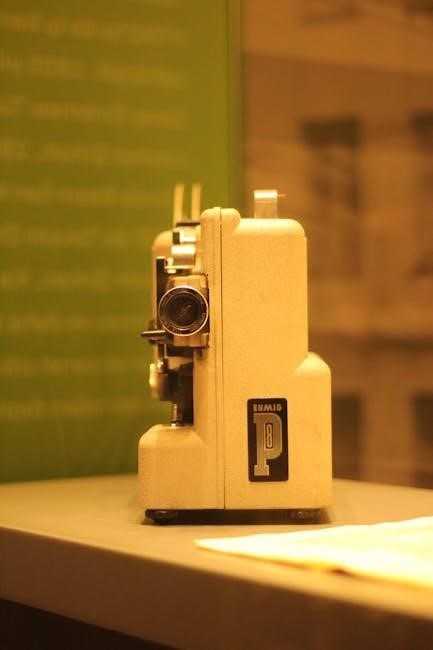
Setting Up Your Star Projector
Begin by removing the protective film from the light aperture and connecting the provided USB power cord to a power source or adapter.
Removing Protective Films
Before initial use of your Rosetta Star Projector, carefully inspect the device for protective films. A clear sticker covers the light aperture, ensuring the lens remains pristine during shipping and handling. Gently peel this film away to reveal the projector lens, allowing for optimal light transmission and a clear projection experience.
It’s crucial to remove this film entirely; any residue can cause blurry or distorted projections. Take your time and use a fingernail or a plastic tool to lift a corner, then slowly peel it back. Discard the protective film responsibly after removal. Ensuring a clean lens is the first step towards enjoying the full potential of your star projector’s vibrant display.
Powering the Device: USB and Adapter Options
The Rosetta Star Projector offers flexible power options for convenient use. You can power the device using the included USB power cord, connecting it directly to a powered USB port on a computer, laptop, or USB hub. Alternatively, utilize a standard USB wall adapter (not always included) plugged into a wall outlet.
Important: The manufacturer recommends using only the provided USB cord to ensure compatibility and prevent potential damage. Ensure the adapter provides a stable 5V power supply. The blue LED indicator illuminates when the projector is receiving power, confirming a successful connection.
Remote Control Overview
The Rosetta Star Projector includes a dedicated remote control for effortless operation from a distance. This remote allows you to control all projector functions, including power, light modes, sound settings, and star movement speed, without needing direct access to the device.
The remote features clearly labeled buttons for intuitive use. A detailed button-by-button explanation is provided in a separate section of this manual. Ensure the remote is pointed directly at the projector’s receiver for optimal responsiveness. Proper battery installation is crucial for functionality.

Understanding the Control Functions
Control functions encompass power operation, light mode selection, and sound/Bluetooth connectivity, all managed via the remote or projector’s onboard controls.
Power On/Off Operation
Powering on the Rosetta Star Projector is straightforward; simply connect the provided USB cable to a powered USB port or utilize the included adapter into a wall outlet. Once connected, a short press of the power button – located both on the projector itself and the remote control – activates the device. A blue LED indicator confirms power is supplied.
To power off, repeat the same process: a brief press of the power button. The blue LED will extinguish, indicating the projector is no longer operational. Note that some models may feature an auto-off timer for extended use, configurable through the settings. Ensure the manufacturer-provided USB cord is used for optimal performance and safety.
Light Mode Selection
The Rosetta Star Projector offers diverse light modes, easily selectable via the remote control. Users can choose between static star projections, creating a fixed celestial display, or dynamic star movement, simulating a flowing galaxy. Further options include various color combinations and brightness levels, enhancing the immersive experience.
Dedicated buttons on the remote control cycle through these modes. Experimenting with different settings allows for personalized ambiance. Some models feature nebula cloud effects, adding depth and realism to the projection. Combining light modes with the built-in speaker creates a synchronized audio-visual spectacle, perfect for relaxation or entertainment.
Sound and Bluetooth Connectivity
The Rosetta Star Projector integrates a built-in speaker, offering both pre-programmed soundscapes and Bluetooth connectivity. To pair your device, activate Bluetooth on your smartphone or tablet and select “Star Projector” from the available devices. Once connected, stream your favorite music or audiobooks directly through the projector’s speaker.
Volume control is conveniently managed via the remote. The projector also features pre-set soothing sounds, ideal for creating a relaxing atmosphere. Utilizing both sound and light features simultaneously enhances the immersive experience, transforming any room into a personal planetarium. Ensure a stable Bluetooth connection for uninterrupted audio playback.

Advanced Features & Customization
Rosetta allows personalized experiences through adjustable brightness, star movement speed control, and utilizing the integrated speaker for immersive audio-visual effects.
Adjusting Brightness Levels
The Rosetta Star Projector offers customizable brightness to suit various preferences and environments. Utilize the remote control to precisely adjust the luminosity of both the starfield and nebula effects. Several brightness levels are available, ranging from a subtle, ambient glow ideal for sleep, to a vibrant, full-intensity display for immersive experiences.
Experiment with different settings to find the perfect balance for your room. Lower brightness levels conserve energy and create a calming atmosphere, while higher levels maximize the visual impact of the projected stars and colors. Remember that ambient room lighting will also affect the perceived brightness, so adjust accordingly for optimal viewing. This feature ensures a comfortable and personalized viewing experience.
Controlling Star Movement Speed
The Rosetta Star Projector allows you to dynamically adjust the speed of the projected star movement, enhancing the realism and immersive quality of the experience. Using the dedicated button on the remote control, cycle through multiple speed settings – from a slow, gentle drift mimicking a clear night sky, to a faster, more energetic flow.
Experiment with different speeds to create the desired atmosphere. Slower speeds are perfect for relaxation and meditation, while faster speeds add excitement and dynamism. This control allows you to tailor the projection to your mood and preferences, offering a truly personalized celestial display. Fine-tune the movement to achieve the perfect visual effect.
Utilizing the Built-in Speaker
The Rosetta Star Projector features a built-in speaker, enabling you to enhance your immersive experience with ambient sounds or your favorite music. Connect your device via Bluetooth to stream audio wirelessly, creating a synchronized light and sound show. The projector also supports playing music directly from a USB drive, offering versatile playback options.
Adjust the volume using the remote control to achieve the perfect balance between the projection and audio. The speaker provides clear and crisp sound, complementing the visual display. Enjoy soothing soundscapes, calming melodies, or energetic tunes alongside the mesmerizing star projections.

Troubleshooting Common Issues
This section addresses frequent problems like the projector failing to power on, remote control malfunctions, and sound/Bluetooth connectivity issues for optimal use.

Projector Not Turning On
If your Rosetta Star Projector isn’t powering on, first ensure the USB cable is securely connected to both the projector and a functioning USB port or wall adapter.
Verify the adapter is properly plugged into a working electrical outlet. Always use the manufacturer-provided USB cord to avoid compatibility issues and potential damage.
Attempt powering the device using both a USB port and the adapter to isolate the problem. Check if the blue LED indicator light illuminates when connected to power; if not, the unit may have a power supply issue.
Test the USB port with another device to confirm its functionality. If problems persist, consult the warranty information for support.
Remote Control Not Responding
If the remote control isn’t functioning, begin by ensuring a clear line of sight between the remote and the Rosetta Star Projector’s receiver. Obstructions can interfere with the signal.
Replace the remote’s batteries with fresh ones, ensuring correct polarity (+/-). Confirm the batteries are properly installed.
Attempt to power the projector on/off directly using the power button on the device itself to rule out a projector issue. The remote’s effective range and angle are limited; operate it within a reasonable distance.
If issues continue, try re-pairing the remote (consult the detailed remote control functions section for instructions).
Sound Issues and Bluetooth Pairing Problems
If experiencing sound issues, verify the volume level on both the Rosetta Star Projector and your connected Bluetooth device. Ensure the projector isn’t muted. For Bluetooth pairing problems, confirm Bluetooth is enabled on your device and that it’s in pairing mode.
Bring your device closer to the projector during initial pairing. Delete previous pairings from your device’s Bluetooth list and attempt to reconnect.
Ensure no other devices are interfering with the Bluetooth signal. If problems persist, try restarting both the projector and your Bluetooth device. Utilize the manufacturer-provided USB cord for optimal performance.
Safety Precautions and Maintenance
Important guidelines include avoiding direct eye exposure to the projection light and keeping the device away from water to ensure safe, long-lasting use.
Important Safety Guidelines
Prioritize safety when using the Rosetta Star Projector. Avoid direct and prolonged exposure to the projected light, as it may cause eye discomfort. Never disassemble or attempt to repair the device yourself; doing so voids the warranty and poses potential hazards.
Keep the projector away from water and humidity to prevent electrical shock or damage. Ensure the power adapter is properly grounded and undamaged. Do not use the projector in excessively dusty or dirty environments, as this can affect its performance and lifespan.
Supervise children when the projector is in use. Always unplug the device when not in use for extended periods. Follow these precautions to enjoy a safe and immersive experience.
Cleaning and Care Instructions
Maintain your Rosetta Star Projector with regular cleaning for optimal performance. Always disconnect the power supply before cleaning. Use a soft, dry cloth to gently wipe the exterior surfaces, removing dust and fingerprints. Avoid using liquid cleaners or abrasive materials, as they can damage the finish.
For the light aperture, use a compressed air canister to remove any accumulated dust particles. Do not insert any objects into the aperture. Periodically check the USB port for debris and carefully remove it. Store the projector in a cool, dry place when not in use, protected from direct sunlight.
Proper care ensures longevity and consistent projection quality.
Warranty Information
Your Rosetta Star Projector is covered by a one-year limited warranty against defects in materials and workmanship from the date of original purchase. This warranty does not cover damage resulting from misuse, accidents, modifications, or normal wear and tear.
To initiate a warranty claim, please contact our customer support team with proof of purchase and a detailed description of the issue. We will, at our discretion, repair or replace the defective product.
This warranty gives you specific legal rights, and you may have other rights which vary by location. For full warranty details, please visit our website.

Detailed Remote Control Functions
The remote control enables convenient operation of the Rosetta Star Projector, offering control over power, light modes, sound, and star movement settings.

Button-by-Button Explanation
The power button initiates or terminates the projector’s operation, indicated by a blue LED. Dedicated buttons control light modes – static stars, dynamic movement, and combined options. Brightness adjustment buttons modify the projection’s intensity. Separate controls manage star movement speed, allowing for slow drifts or rapid rotations.
Sound controls include volume adjustment and Bluetooth connectivity activation. The Bluetooth button pairs the projector with external devices for music playback. Dedicated buttons cycle through pre-programmed soundscapes or enable a silent mode. The instruction manual emphasizes using the manufacturer-provided USB cord for optimal performance. Understanding each button unlocks the full potential of the Rosetta Star Projector.
Remote Control Range and Angle
The remote control for the Rosetta Star Projector operates effectively within a range of approximately 10 meters (33 feet) in an unobstructed environment. Optimal performance requires direct line-of-sight between the remote and the projector’s receiver. However, functionality may diminish with obstacles present.
The ideal operating angle is within 45 degrees of the projector’s front panel. Excessive angles or distances can lead to intermittent or unresponsive control. User manuals suggest replacing the battery (typically AAA) if responsiveness decreases. Maintaining a clear path and appropriate distance ensures reliable operation of all features, enhancing the user experience.
Replacing the Remote Control Battery
To replace the battery in your Rosetta Star Projector’s remote control, locate the battery compartment on the back; Gently slide the compartment cover open, typically using a small fingernail or flat object. Remove the existing battery – usually a AAA size – and insert a new one, ensuring correct polarity (+ and -) as indicated inside the compartment.
Re-secure the cover until it clicks into place. A fresh battery will restore full functionality to the remote, resolving issues like unresponsiveness or limited range. User manuals emphasize using only standard AAA batteries for optimal performance and to avoid potential damage to the device.

Exploring Different Projection Modes
The Rosetta Star Projector offers static star fields, dynamic movement, and combined light/sound modes for immersive experiences, enhancing bedroom ambiance and relaxation.
Static Star Projection
The static star projection mode on your Rosetta Star Projector creates a serene and calming atmosphere by displaying a fixed arrangement of stars. This mode is ideal for those who prefer a traditional, unchanging night sky effect. Simply select the desired color and brightness level using the remote control or the device’s buttons.
Unlike the dynamic modes, the static projection doesn’t feature moving stars, offering a peaceful backdrop for relaxation, meditation, or simply enjoying a quiet evening. It’s a fantastic option for children who might find the movement of dynamic projections overstimulating. Experiment with different color combinations to find the perfect ambiance for your space, transforming any room into a tranquil celestial haven.
Dynamic Star Movement
The dynamic star movement mode brings the cosmos to life within your room! This feature simulates the natural movement of stars across the night sky, creating a captivating and immersive experience. Using the remote control, you can adjust the speed of this movement, ranging from a gentle drift to a faster, more energetic flow.
This mode is perfect for those who want a more realistic and engaging projection. Combine it with different color options to mimic various celestial events or create your own unique cosmic display. The dynamic movement adds a layer of depth and wonder, making it ideal for parties, romantic evenings, or simply enjoying a mesmerizing visual spectacle.
Combination of Light and Sound Modes
Unlock the full potential of your Rosetta Star Projector by synchronizing the stunning light displays with integrated sound modes! This projector features a built-in speaker and Bluetooth connectivity, allowing you to play your favorite music or utilize pre-programmed soundscapes.
Experiment with different combinations – soothing ambient sounds paired with gentle star projections for relaxation, or upbeat music synchronized with dynamic light movements for a vibrant party atmosphere. The remote control provides easy access to both light and sound controls, enabling seamless customization. Create a truly immersive sensory experience tailored to your mood and preferences!